
Managing Room Reservations in Outlook
Scheduling Rooms for Meetings
Users can schedule spaces via reservation in Outlook as an alternate to the Room Request functionality on admin.eas.gatech.edu
The following spaces are available to request:
- Ford ES&T 1177
- Ford ES&T 1229
- Ford ES&T L1114
- Ford ES&T L1110 Computer Lab
All reoccurring events should only be scheduled out until the end of the current semester
1. Using the Outlook application, select "New Meeting"

or
with the web client select "New Event"
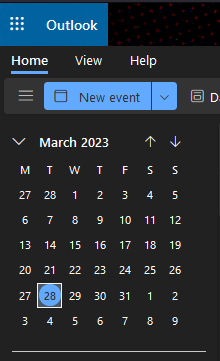
2. On the "New Meeting" popup on the application, rooms can be searched as indicated below.

3. Select the room you requesting
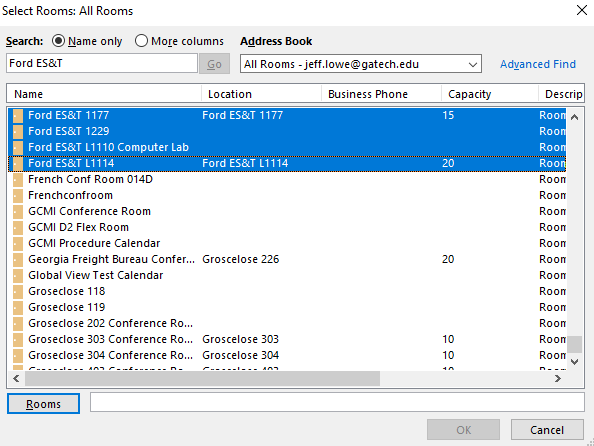
4. Select OK - You will see the room listed at the bottom

Rooms must be scheduled as a Resource(location)
-
If a room is not scheduled as a Resource(location), the meeting request will not be forwarded to Moderators.
Also highlighted above:
- Scheduling Assistant - see time available for specific rooms
- Recurrence - Options for repeat meetings
All reoccurring events should only be scheduled out until the end of the current semester
The spaces in Ford ES&T are Moderated
- Requests to reserve the resource must be approved or denied by the resource manager.
How do I prevent Outlook from automatically creating a Microsoft Teams meeting?
- Visit https://outlook.office.com/mail/
- Log in to Outlook with your GT login credentials.
- Click the Settings gear icon at the top right of the page.
- Select 'View all Outlook settings' link at the lower right corner of the page.
- Select the 'Calendar' tab from the settings menu, then select the 'Events and invitations' option.
- Un-tick the option, 'Add online meeting to all meetings'.
- Select the 'Save' option to save your changes
If your meeting request was declined, it means that the room you selected is not available at the requested date and time. Here are a few options you can try:
-
Use the Scheduling Assistant and Room Finder for meetings in Outlook
-
Look for another available room: If the room you initially selected is not available, you can try selecting a different room that is available at the requested date and time.
-
Adjust the date and time: If there are no available rooms at the requested date and time, you may need to adjust the meeting date and time to find a room that is available.
-
Check for conflicting events: It's possible that the room you selected has already been booked for another event that conflicts with your meeting. Check the calendar to see if there are any conflicting events and adjust the meeting time accordingly.
The request for the space was declined, but the event is still showing on your personal calendar
When you schedule a meeting and invite attendees, the meeting is added to your personal calendar as a tentative event until the attendees respond. Once an attendee accepts the invitation, the meeting becomes a confirmed event on your calendar.
If the meeting request is declined by a resource like a room, the event will still appear on your personal calendar as a tentative event because you were the one who initially created the meeting request.
To remove the declined event from your personal calendar, you can manually delete the event if you are an invited attendee, wait for the meeting organizer to cancel the meeting. When the meeting organizer cancels the meeting, the event will be removed from everyone's calendar, including yours.
Alternatively, you can check with the meeting organizer to confirm if the meeting is still going ahead or if they have rescheduled it. If they have rescheduled it and you are still invited to the new meeting, you can accept the new invitation, and the declined event should be removed from your calendar.
If you don't see the denial from the resource, it's possible that the response may have been delayed or not properly processed. Here are some steps you can take to check the status of the meeting:
-
Check the meeting invitation: Open the meeting invitation from your calendar and look for any responses from the resource. If the resource has declined the meeting request, it should be mentioned in the email response.
-
Check the resource calendar: You can check the resource calendar to see if the meeting is still showing up as booked or if it has been removed. If the meeting is still showing up, it's possible that the resource has not processed the decline yet.
-
Contact the resource: You can contact the resource or the resource owner to confirm the status of the meeting. They may be able to provide additional information on the resource's availability or why the meeting was declined.
-
Reschedule the meeting: If the resource has declined the meeting request, you may need to reschedule the meeting to a different time or location that is available. You can then send a new meeting request to the attendees and resources.